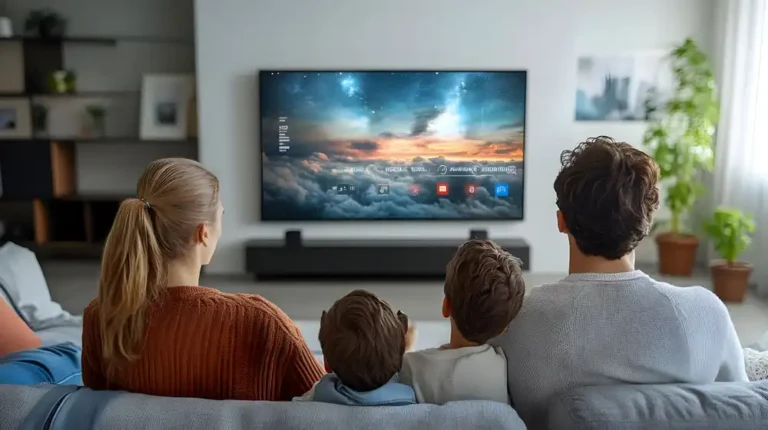
Experience ultimate stability worldwide. Get your Buffer-Free IPTV Server with 99.9% uptime and instant secure activation. View Plans → iew Plans →


Why Picture Calibration Matters Before Watching IPTV Content
When you subscribe to a premium service like Zenova TV, streaming quality depends largely on the screen you have at home. Many users assume that simply connecting the device and pressing play is enough, but the reality is that factory settings rarely deliver the best performance. Learning how to optimize settings for picture on your TV not only improves sharpness, it also reduces eye strain and extends the lifespan of the panel. In this article we walk you through the most important options step by step on the WebOS (LG) and Tizen (Samsung) systems, two of the most widely used smart TV platforms on the market.
How to Optimize Picture Settings on WebOS (LG) TVs
LG TVs running WebOS offer granular control over the panel. To start, go to Settings > Picture. There you will find preset modes such as Standard, Vivid, Cinema and Sports. If you want to know how to optimize settings on your LG for IPTV, it is best to start from Cinema or Expert (Bright) mode, since these tend to respect the original color grading of the content more faithfully.
Backlight and Contrast Adjustments on WebOS
In the settings menu, look for Backlight. This parameter controls the intensity of the panel light. For a room with average ambient light, a value between 60 and 80 is acceptable. But if you watch at night, drop it to 40-50 to prevent blacks from looking grey. Contrast should sit around 80-85 on LCD screens, while on OLED a value of 70-75 prevents whites from clipping. Many professional tests recommend using a test pattern to calibrate these values, but the general idea is that there should be no loss of detail in the white areas.
A common mistake is adjusting Brightness thinking it illuminates the screen. In reality, brightness sets the black level. Raising it too much makes blacks look washed out. On WebOS, leave brightness at 50 and only raise the backlight if you need more light. That way you correctly apply how to optimize settings for picture without ruining the TV’s native contrast.
Color, Tint and Temperature on LG WebOS
Under Color, the ideal saturation is usually between 50 and 60. Tint stays at 0 for standard video content. Under Color Temperature, choose Medium or Warm for films and series, since cool modes lean blue and distort skin tones. If your IPTV service broadcasts in 4K HDR, enable Tone Mapping in HGIG Mode or Dynamic Brightness depending on the signal. This is an essential part of how to optimize settings for HDR on WebOS.
Another setting you should not overlook is Sharpness Management. LG adds an enhancement filter that creates artificial halos around edges. Set sharpness to 0 or 10 at most. For high-definition content, the picture should look natural, not excessively edged.
How to Optimize Picture Settings on Tizen (Samsung) TVs
On Samsung Tizen models, the path is Settings > Picture. The system offers modes such as Dynamic, Standard, Movie and Filmmaker Mode. For streaming, Filmmaker is ideal because it disables motion smoothing and preserves the original colours. If you want to learn how to optimize settings on your Samsung for IPTV, start with that mode and then fine-tune the submenus.
Backlight, contrast and brightness on Tizen
Tizen splits backlight control into LED Brightness (for sets with FALD or Direct LED). On Samsung, contrast is called Contrast and brightness stays the same. A solid starting point is: LED brightness 50, contrast 85 and brightness 0. Many QLED panels need higher contrast for whites to stand out, but avoid overdoing it. There is also Auto Contrast, which is best switched off, because it dynamically dims dark scenes and alters the director’s intent.
Likewise, the Colour Tone option on Tizen lets you choose between Cool, Standard and Warm. We recommend Warm for films and Standard for mixed use. Inside the Picture Settings menu, Colour Management lets you calibrate saturation and tint for each colour individually, which is very useful if IPTV content looks washed out.
Visual performance and motion on Tizen
Samsung includes Sharpness or Contrast Enhancer. Leave the former at 0 or enable it only for low-resolution content. Noise Reduction can stay on Auto if your connection is not very stable, but if you receive IPTV in 1080p or 4K, turn it off to gain detail. For sports, enable Motion Support in Sports Viewing, but for films, disable Motion Smoothing (soap opera effect). This is part of how to optimize settings for motion across different genres.
Another Tizen feature is automatic Picture Quality Adjustment based on ambient light. If you want full control, turn this off and configure manually for each time of day.
General tips for applying calibration by content type
There is no single universal formula. The ideal setup for a 4K HDR film is not the same as for an SD news channel. That is why custom profiles work best. On WebOS you can create one profile for IPTV and another for films. On Tizen, Movie mode and Game mode already ship with different parameters. Learning how to optimize settings per profile saves you from changing options every time you switch sources.
Also, if you use the official Zenova TV player, check that the video output is set to the TV’s native resolution. Do not let the IPTV player perform unnecessary scaling. Better that the screen receives the original signal and handles upscaling with its own processor.

Common mistakes when trying to improve the picture
One of the most common mistakes is using Vivid or Dynamic mode for everything. These modes over-saturate colours and push the backlight to maximum, producing excessive contrast that strains the eyes and raises power consumption. If your goal is how to optimize settings for picture without harming the panel, avoid those modes. Another mistake is enabling Motion Smoothing on films, as it removes the characteristic “24 fps cadence” and makes everything look like a cheap soap opera.
Technical calibration vs. personal taste
Calibration patterns such as those from Display Calibration let you adjust gamma, white points and colour space. But professional calibration does not always match the user’s taste. If you like a little more saturation, that is fine. The goal is not a clinically perfect image, but one that preserves detail and feels comfortable. The key to how to optimize settings for picture is understanding what each parameter does and adjusting it to your viewing conditions.
Also remember that adjustments should be made with the right source. If you are watching a 720p channel, do not expect the TV to compensate for a poor signal. Make sure your connection has enough bandwidth to play the maximum quality your IPTV plan offers, especially in HDR content.
Frequently asked questions about picture settings on LG and Samsung
Which picture mode is most recommended for IPTV?
For WebOS, Cinema or Expert mode is the most balanced. For Tizen, Filmmaker Mode is excellent if the content respects the format. If your IPTV includes sports, you can use sports mode, but adjust sharpness and motion to avoid artificial effects.
How to optimize settings for picture to reduce power consumption?
Lower the backlight or LED brightness. On WebOS, the built-in energy saving can automatically dim the light if you enable it. On Tizen, Optimal Brightness Detection does the same. Dropping from 70 to 50 on backlight gives a big saving without losing quality in dark environments.
Why does my TV not apply the settings when I watch HDR content?
Both WebOS and Tizen have separate settings for SDR and HDR. If you adjust the picture with an SDR source, those values do not apply to HDR. Enter the picture menu while an HDR video is playing and adjust the parameters at that moment.
Is it advisable to turn off motion smoothing for IPTV?
It depends on the content. For news or sports, slight smoothing can help reduce flicker. For films and series, it is better to turn it off. Most users looking for how to optimize settings for picture in cinema modes end up turning smoothing off completely.
Should I buy a calibration disc or use preset settings?
A calibration disc (such as Spears & Munsil) will give you more precision, but it is not essential. You can start with the preset modes and then adjust manually. The difference between an expert and an amateur adjustment shows in the blacks and colour temperature, but any positive change already improves the experience.
Final conclusion: practice and patience
Optimising the picture is not a one-off task, but a matter of trial and error. Both WebOS and Tizen offer extensive calibration tools, yet you must invest time in understanding how the parameters behave on your specific model. Remember that the most important settings are backlight, brightness, contrast and colour temperature. Apply how to optimize settings for the picture on your LG or Samsung by following these recommendations, and you will notice an immediate improvement when using your favourite IPTV service.
If you would like to review more articles on setup and streaming, we invite you to keep exploring our site. The quality of your experience depends not only on bandwidth, but also on your commitment to a well-calibrated picture. With a little practice, you will make every film, match or documentary look exactly as it was intended.